Interface: Editor
The Editor is the heart of RhythmNator. This is where you will spend most of your time mapping your audio files.
1. Top Bar
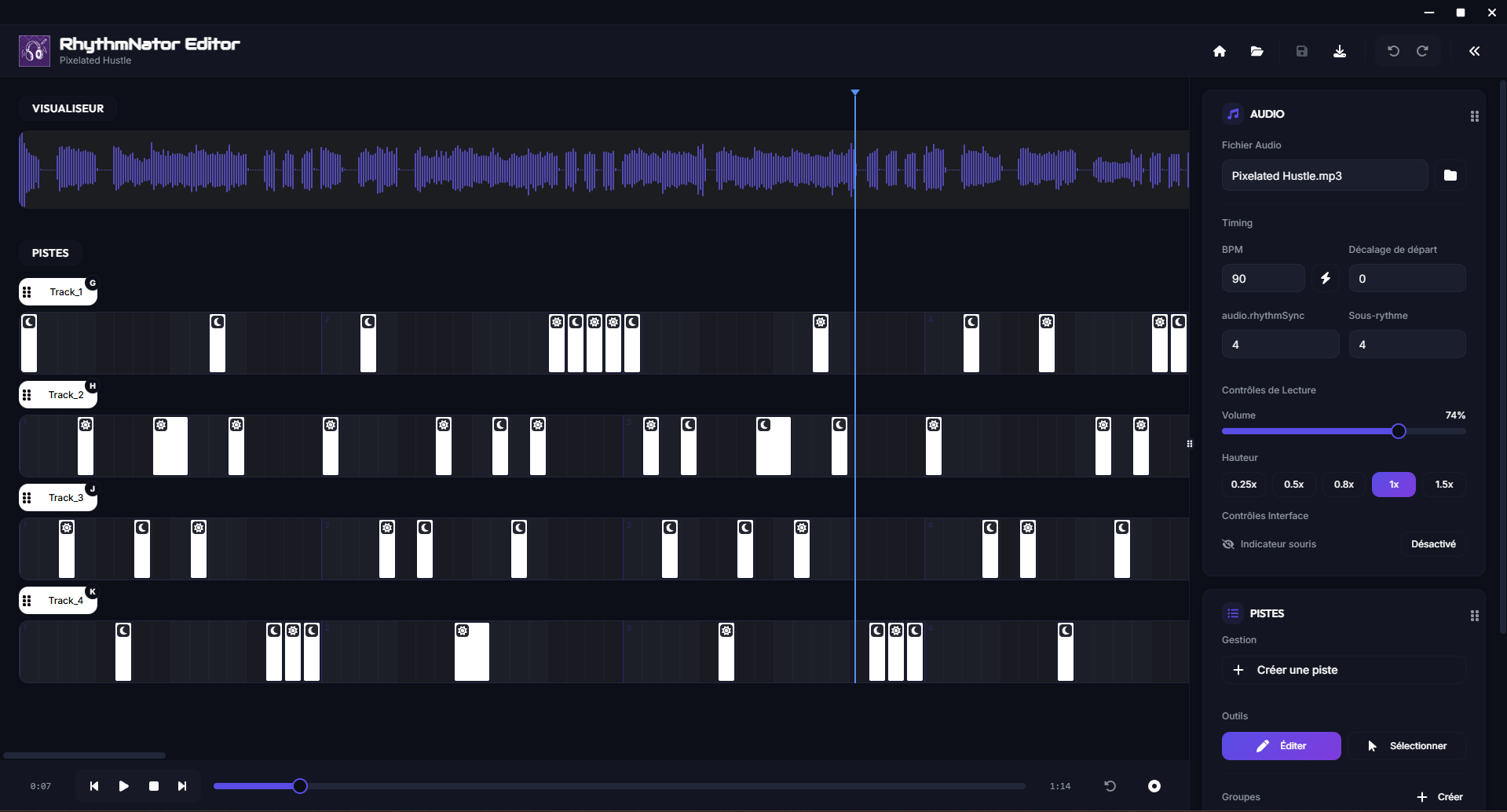
The top bar groups project information and global actions.

- On the left: Displays the tool title (RhythmNator) and the project tool name just below it.
- On the right: A series of icons for quick actions:
- Home: Return to the project selection screen.
- Folder: Open the folder containing the project files.
- Save: Save your changes.
- JSON Export: Export the final sheet in JSON format.
- Undo / Redo: Undo or redo the last actions.
- Sidebar: Open or close the left sidebar.
2. Work Area (Track)
The work area is divided into two main sections:

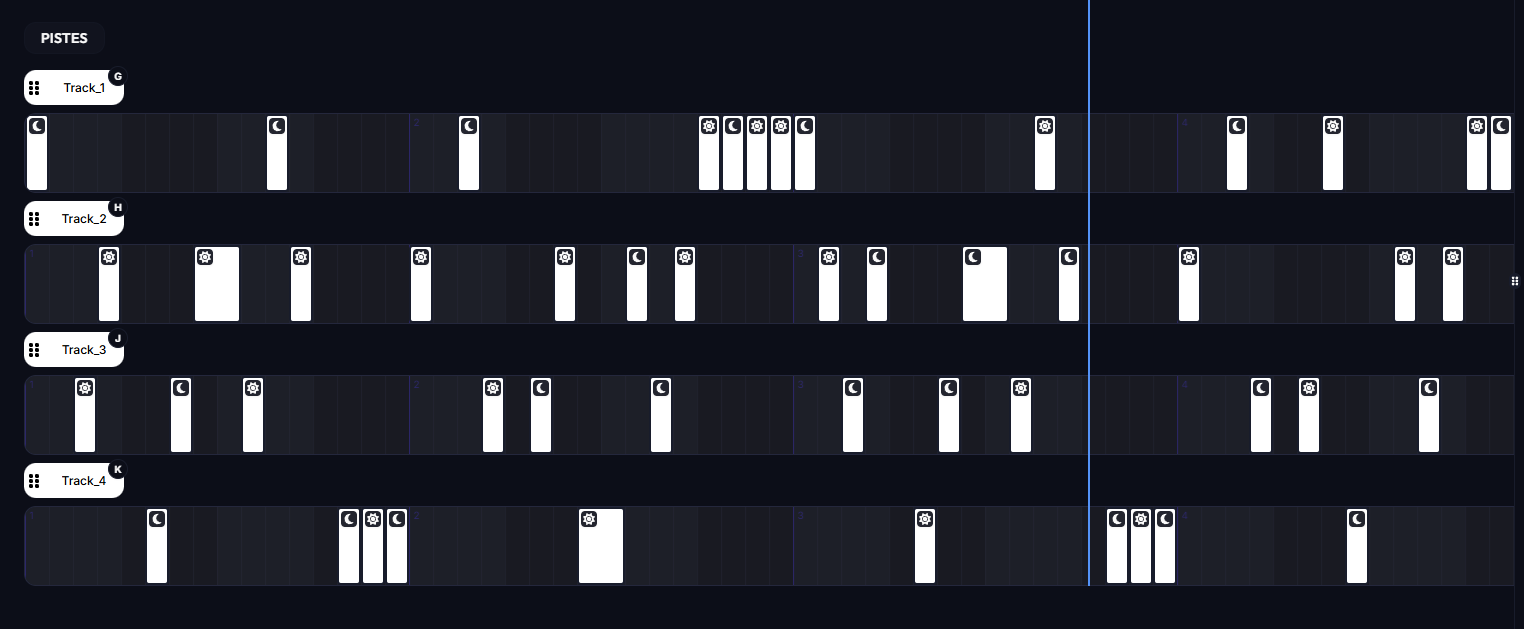
- The Visualizer: Allows you to see the music's waveform for visual precision when placing notes.
- The Track List: Displays the different tracks created with the notes placed inside them.
- Playhead Line: A vertical line that precisely indicates where you are in the music.
To learn how to create and manage your tracks, consult the Guide: Work Area (Track).
3. Audio Panel
This panel manages everything related to the sound file and the basic rhythm.
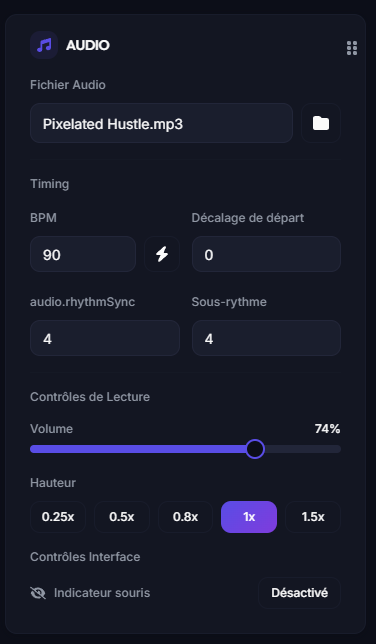
- Loading: Area to load or change the audio file.
- BPM: Displays the current tempo. Click the Lightning icon to automatically detect the BPM.
- Starting Offset: Adjust the initial synchronization of the music.
- Volume: Control the playback volume in the editor.
- Playback Speed: Change the speed (e.g., 0.5x, 1x, 2x) to map difficult passages.
- Mouse Indicator: Shows or hides your cursor's position on the grid.
4. Tracks Panel
Manage your sheet's structure here.
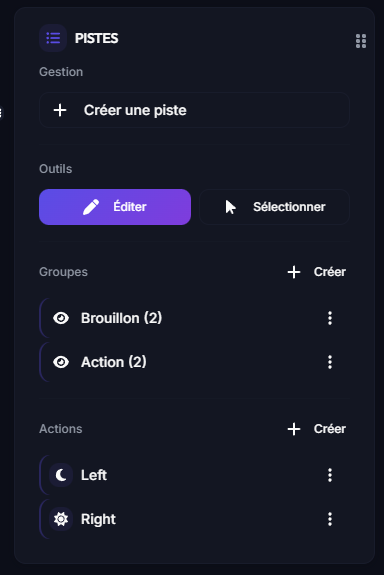
- New Track: Create an additional track.
- Edit: Allows you to create or delete notes manually.
- Selection: Allows you to select multiple tracks or notes to move, delete, copy, or paste them.
- Group Manager: Organize your tracks by groups (e.g., Drums, Guitar).
- Action Markers: Manage specific events at certain points in the music.
5. The Player (Playback)
The player gives you total control over listening to your creation.

- Play / Pause: Start or stop the audio.
- Stop: Stop playback and return to the beginning.
- Navigation: Use the buttons to fast-forward or rewind quickly through the music.