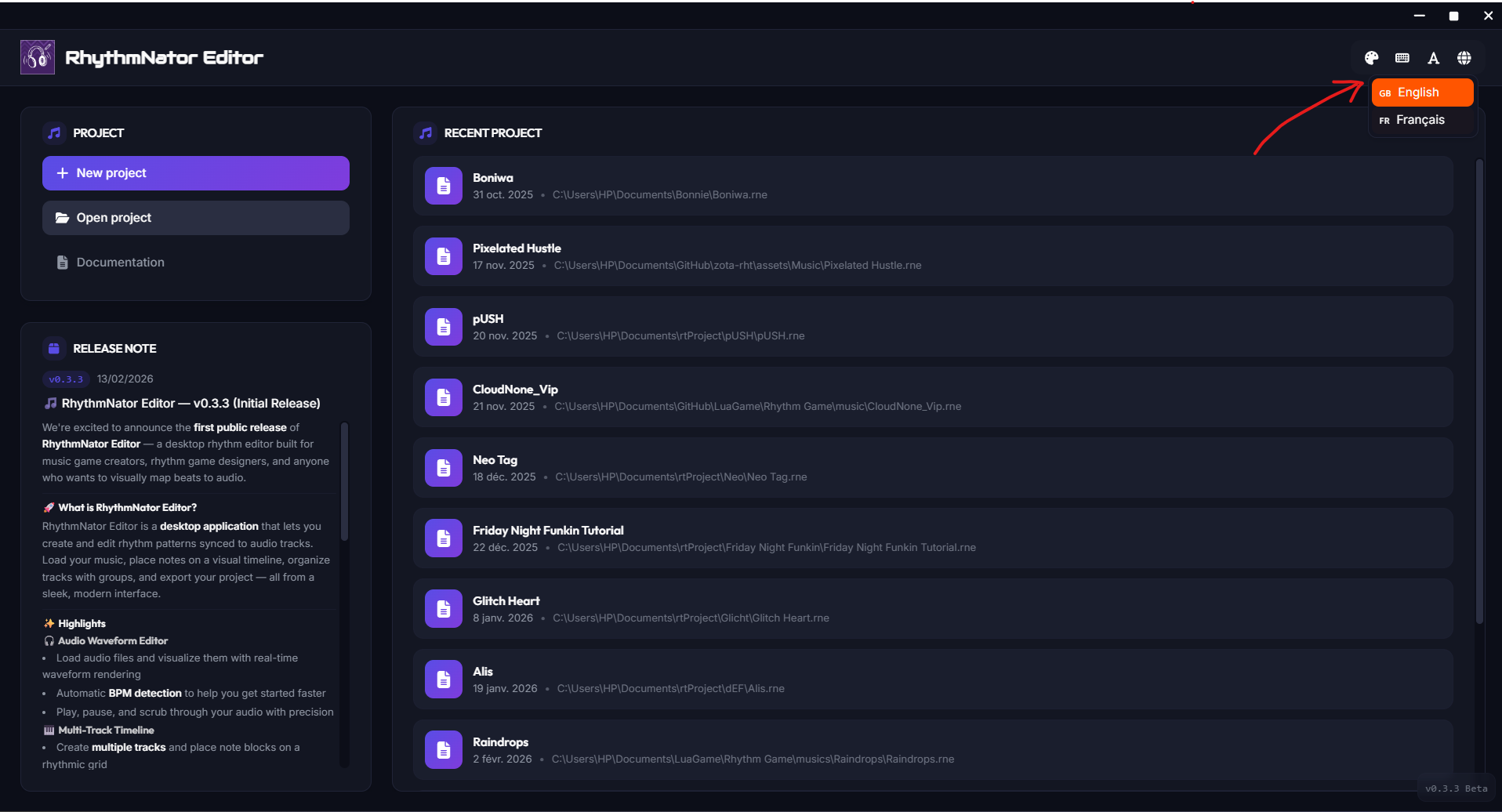
Interface: Home
The home screen is your project management center. This is where you can organize your work, choose your visual environment, and configure your global preferences.
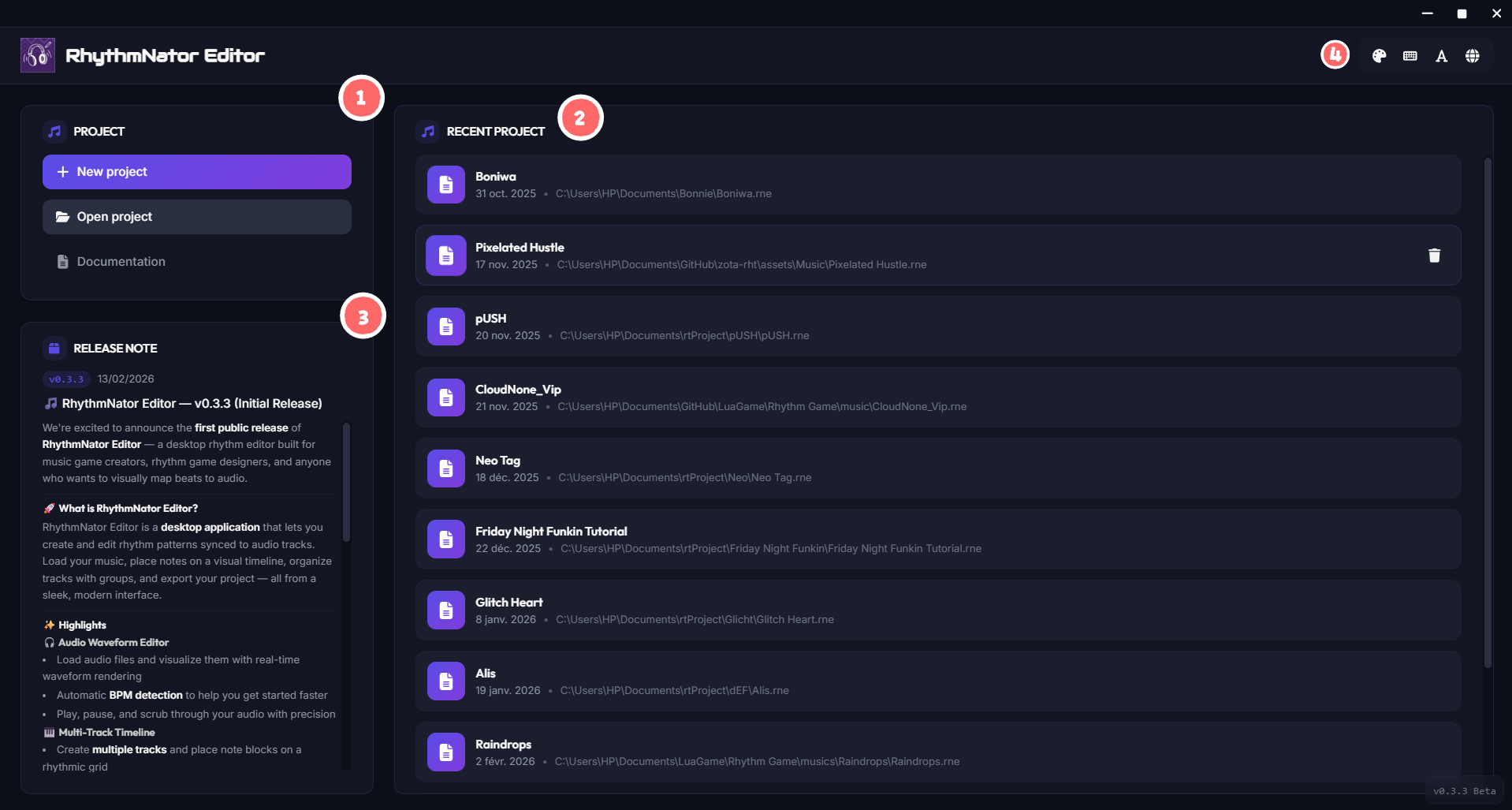
Overview
The home interface is divided into several strategic areas:
- Project Menu (Left): Quickly access new project creation, opening existing files, or documentation.
- Recent Projects (Center): Find your current work with its location and the date of the last modification.
- Update Notes (Bottom Left): View the latest software evolutions.
- Global Options (Top Right): Personalize your workspace.
Top Toolbar
At the top right of the screen, you will find four essential icons to configure your experience on RhythmNator Editor:
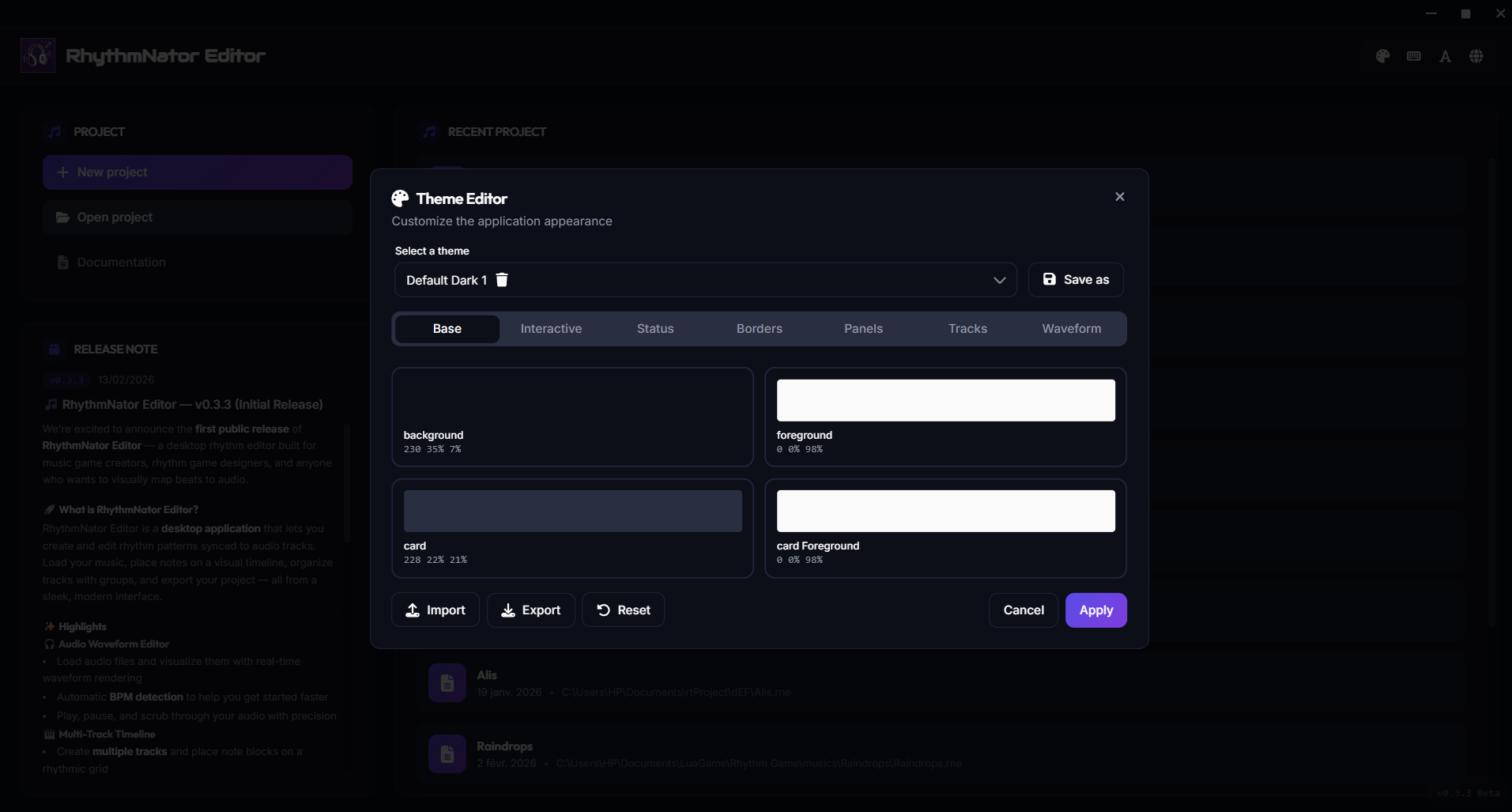
🎨 Theme Manager
The palette button opens the Theme Manager. RhythmNator offers several built-in themes (Amethyst, Dark, Light, etc.) and even allows you to customize the colors of each interface element (background, cards, waveforms).
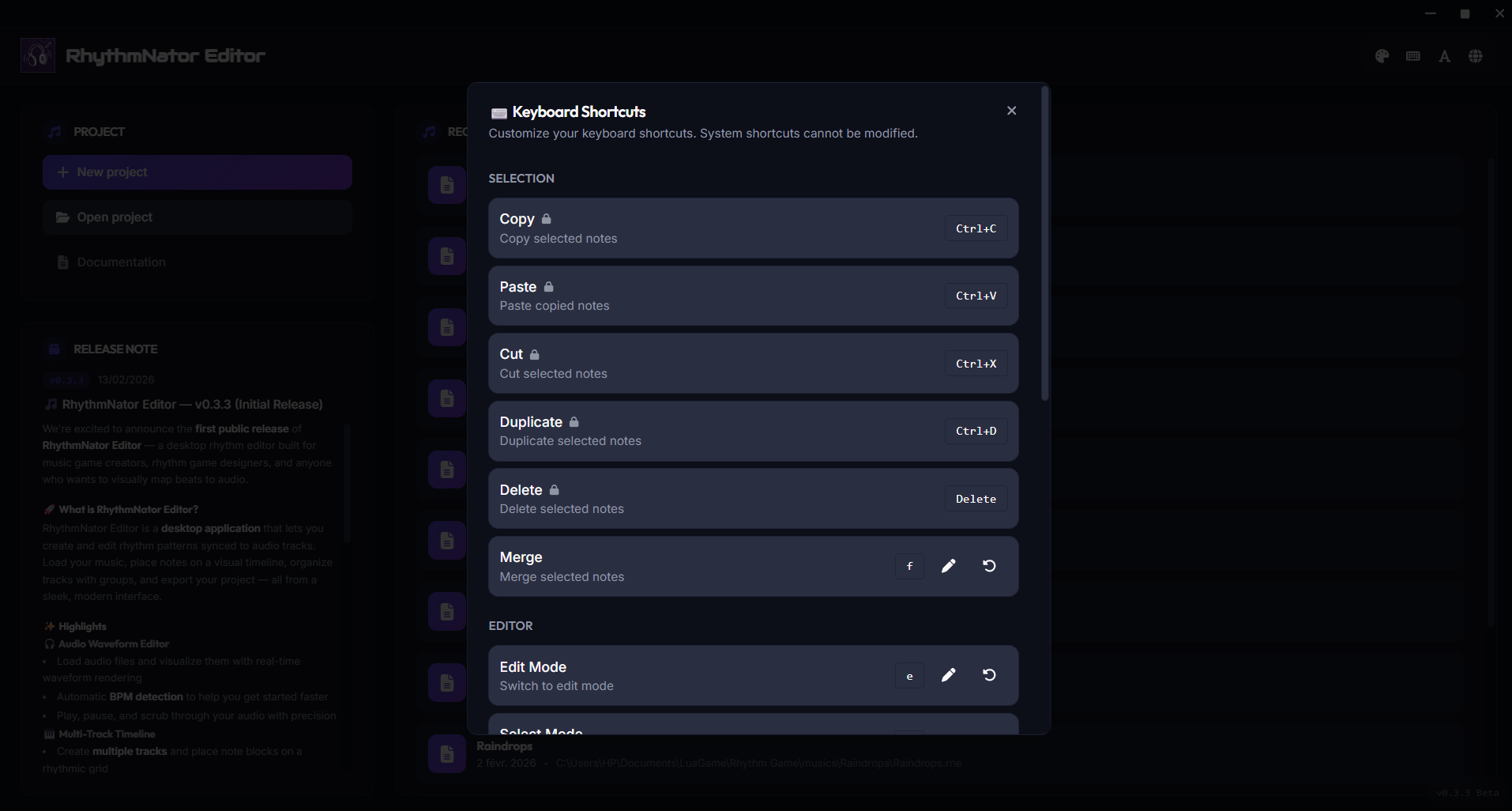
⌨️ Keyboard Shortcuts
The keyboard icon displays the exhaustive list of Shortcuts. Using shortcuts is highly recommended to increase efficiency when mapping your musical tracks.
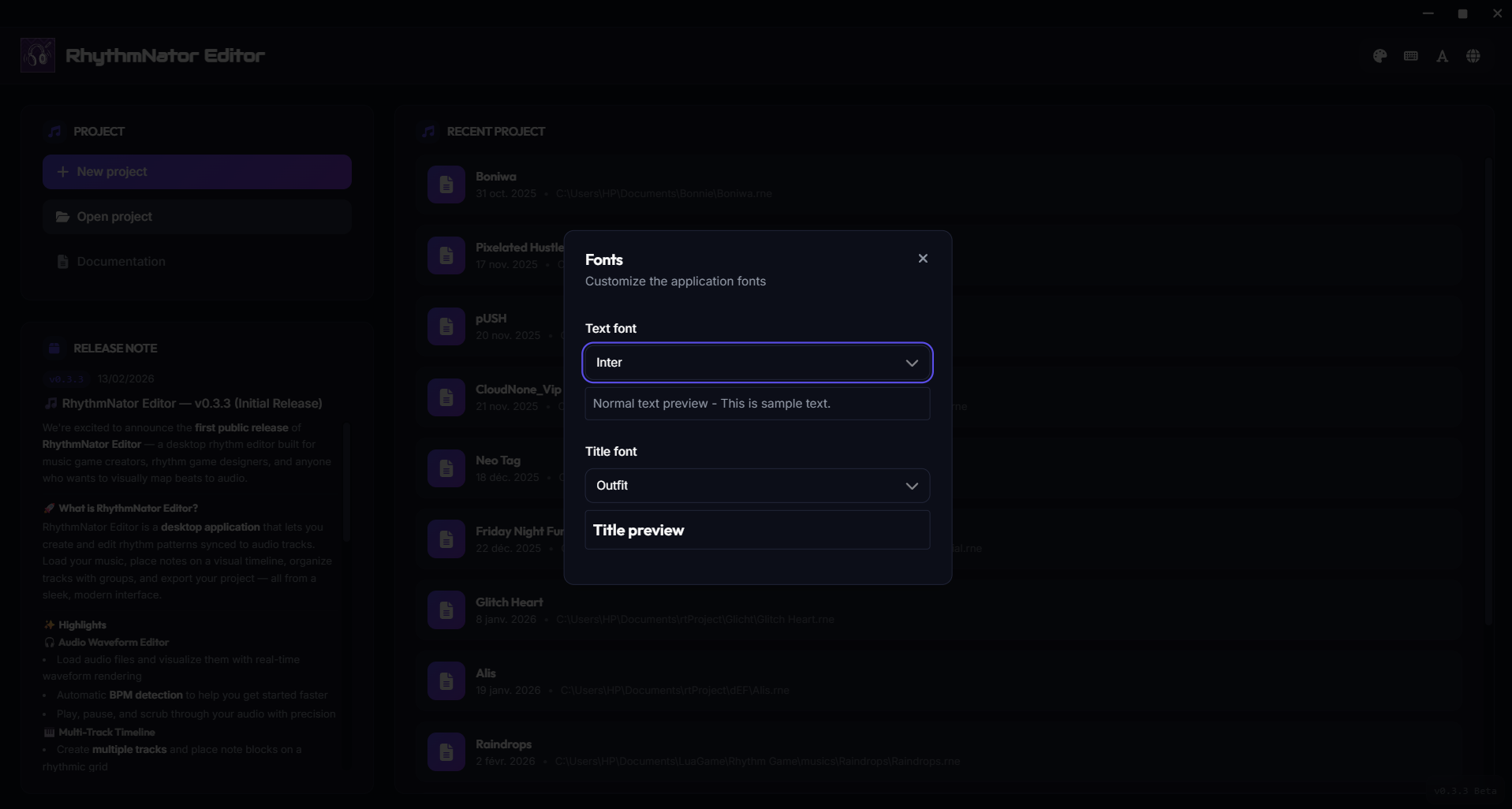
🅰️ Character Font
This button allows you to change the Font used in the editor. You can choose different fonts for titles and body text to optimize your visual comfort.
🌐 Language Selection
The globe icon allows you to instantly switch the interface language between French and English.